
Getting the Error in Xbox pc app while installing the Game in your computer and laptop can be very haptic and annoying. So today I’m here to resolve this issue in minutes without any software installation. Struggling with the Xbox PC Pass installation error on drives other than C:? If you’ve encountered the ‘0x8007177e’ error and need a straightforward fix, you’re in the right place! Join me, as we tackle this issue step by step. No useless info—just easy solutions to get you back to gaming.
Method Regedit/ Registry editor
To fix this error of Xbox error code 0x8007177e you need to open the regedit of your PC/Laptop.
To open regedit in your system you just have to go to the search bar of your pc as shown in the image below or press win+R the type Regedit
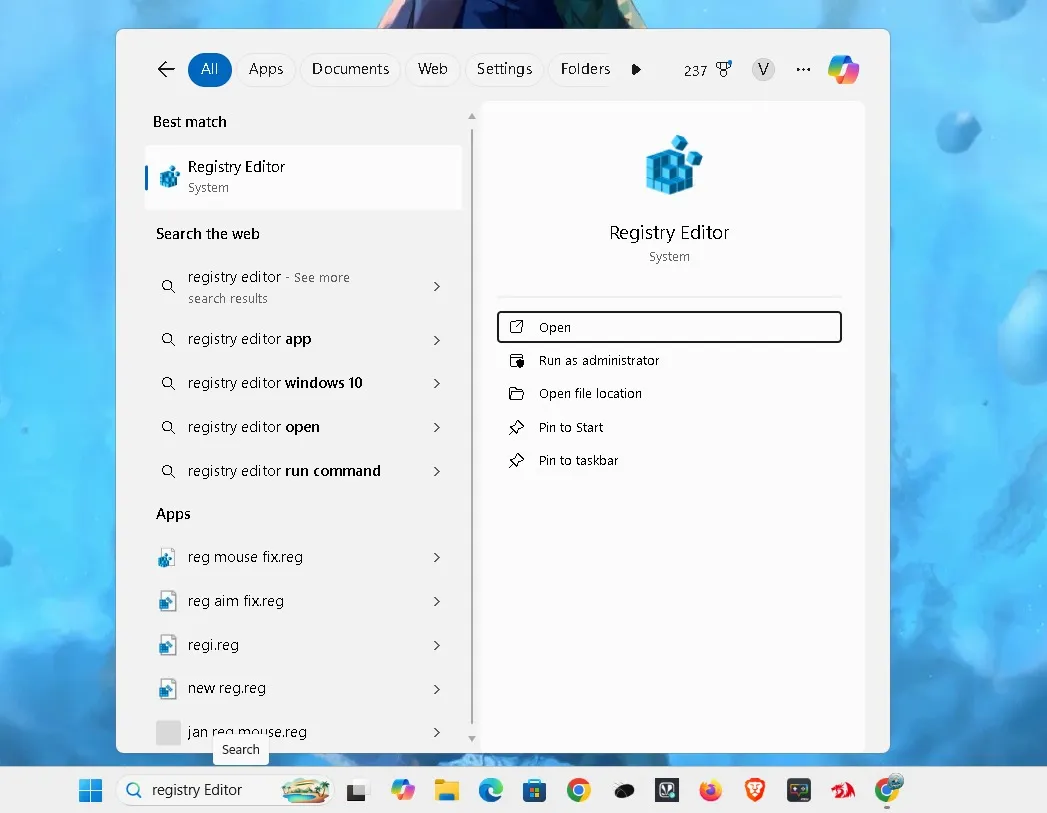
Here is the image by the help of which you can access regedit or registry editor or by using WIN+R
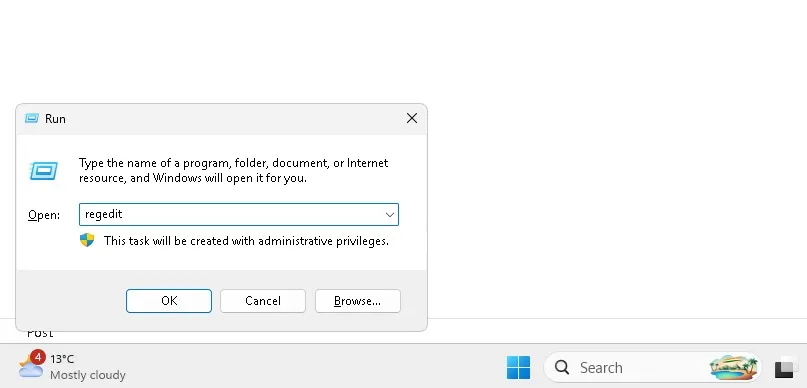
after Getting into the regedit, you have to go to the location where You will find the file named NTFSdisableencryption to find this file copy location of the path I’m giving you Below.
Regedit NTFS disc encryption disable file location.
Computer\HKEY_LOCAL_MACHINE\SYSTEM\CurrentControlSet\Control\FileSystem
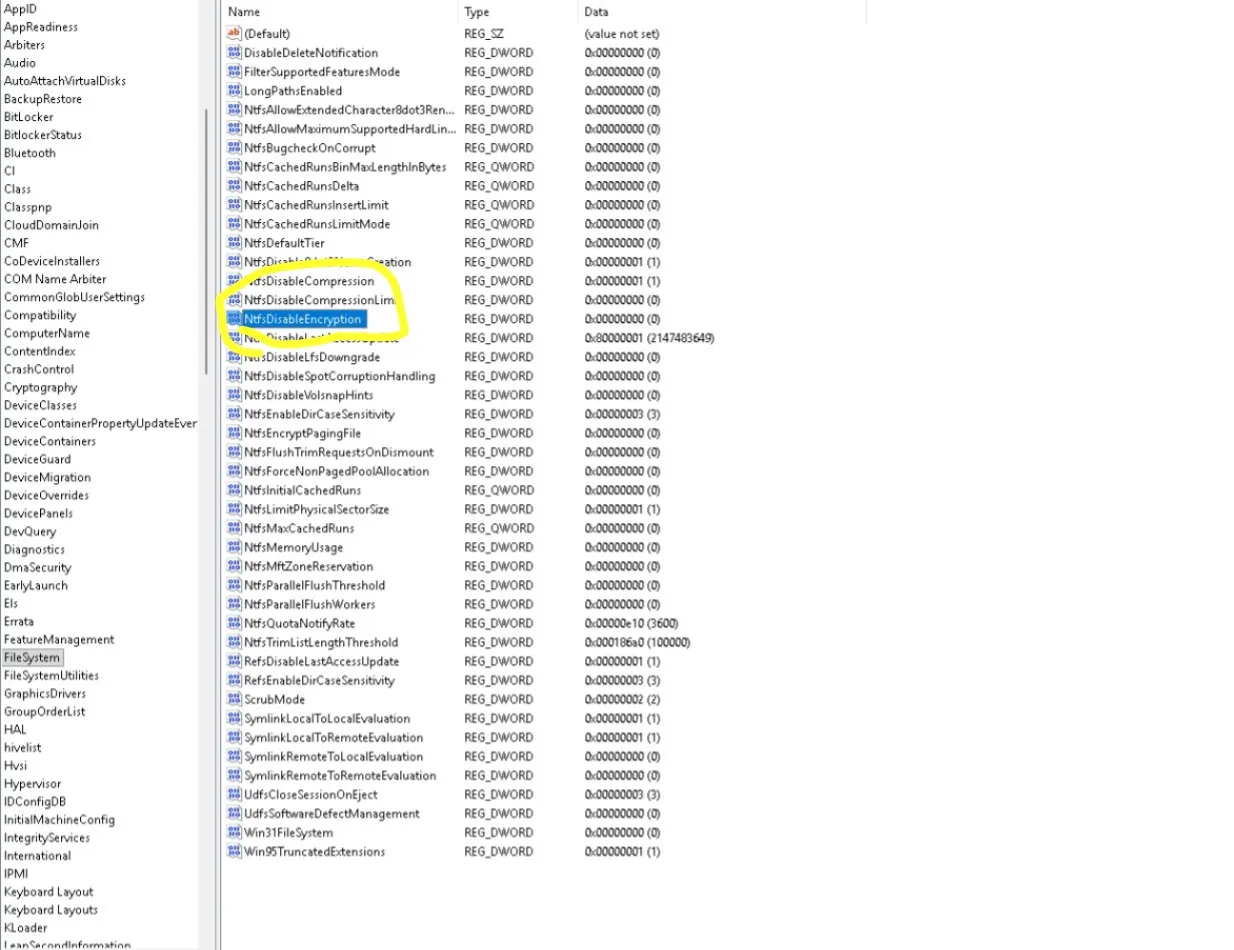
After pasting the desired location in regedit address bar you will redirect in the location of File System registry, here you have to find NTFS Disable encryption file path as shown in the image above. After getting the file ntfsdisableencryption you will find that the value of this file is set to 1 by default so you just have to change it to 0. In my case it is already 0 because I’ve fixed the error that’s why it is 0 AS SHOWN IN the image above.
So after changing the value of the file ntfsdisableencryption to 0 you just have to Restart your PC. PC /Laptop restart is compulsory to get rid off this problem. After restart you just have to reinstall the game from Xbox and then you will see that the game has been installed and and the problem has been fixed.
Step By step Process
- Go to regedit/registry editor.
- find file system path by going to the location of regedit given above.
- find file with the name ntfsdisableencryption.
- change the file value 1 to 0.
- Finally you have to restart your PC.
- Now go to xbox app and try to install again and you will see that the game is successfully installed.
People also ask
How to fix error code 0x80070005 on Xbox?
How to fix error code 0x87e00017?
How to fix Xbox Game Pass not installing?
How to fix Xbox app not installing on PC?
How to resolve 0x80070005 error?
What is error code 0x80070070 on Xbox game pass?

